
On the Mac
Vehicare is a real Mac app, with a menu bar, a table you can work in, and keyboard shortcuts for everything. Most of this works on an iPad with a keyboard too.
The window
The sidebar lists your vehicles and workshops. Select one, and the rest of the window shows it: cards for what it is, what’s coming up, what it has cost and its odometer, and its service history underneath.
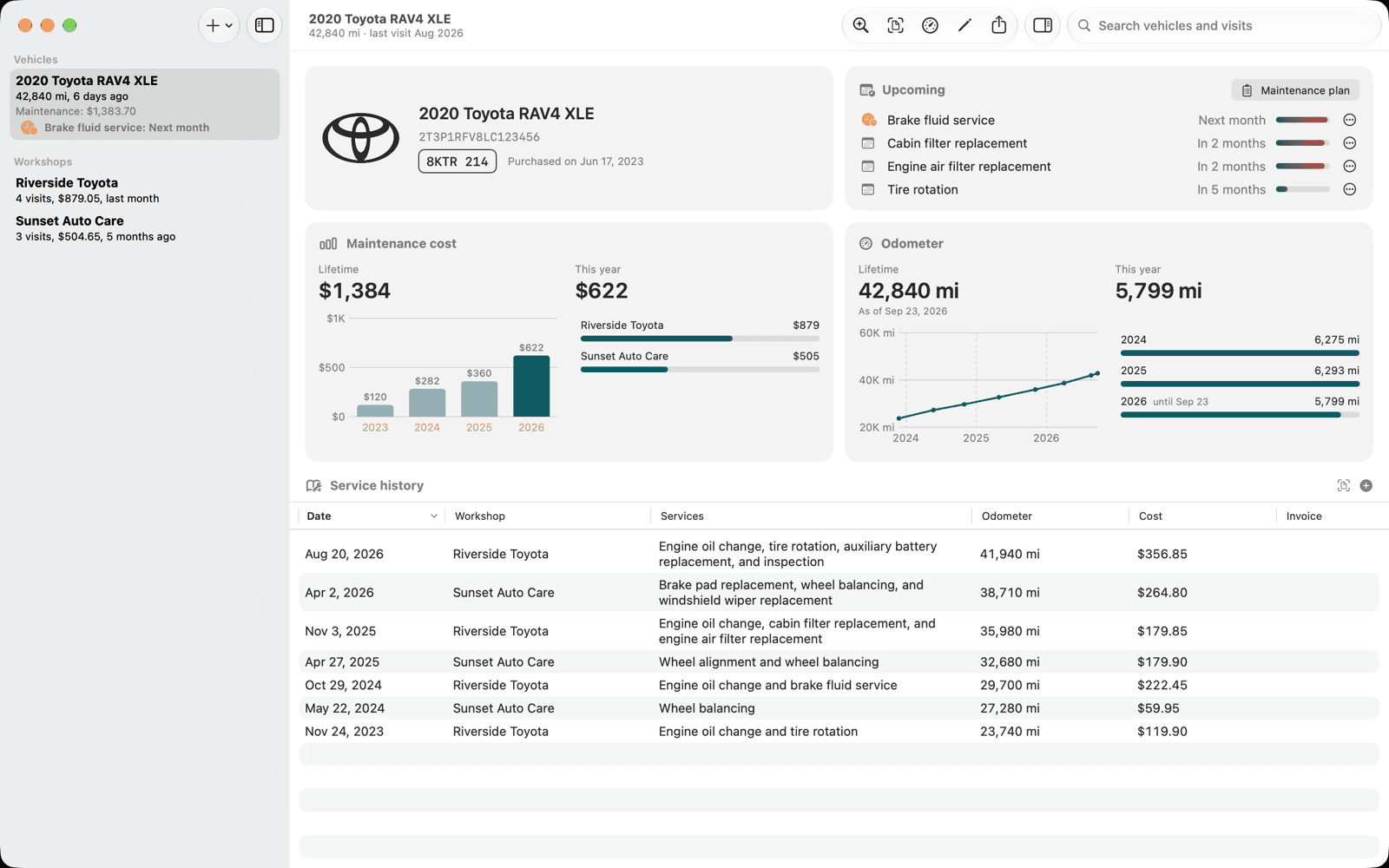
- 1The sidebar: your vehicles and workshops
- 2Ask Vehicare, Import invoice, log the odometer, edit and share
- 3What’s coming up, and the maintenance plan
- 4The service history
The cards that fit are the ones shown: make the window bigger, and the charts appear.
The service history table
Each visit is a row, with its Date, Workshop, Services, Odometer, Cost and Invoice. Click a column’s header to sort by it. Drag the headers to rearrange them, and right-click one to hide a column. Each window remembers how you left it.
| Keys | What they do |
|---|---|
| Return | Open the selected visit. Double-clicking does the same. |
| Space | Look at its invoice in Quick Look. |
| ⌘C | Copy the selected visits, ready to paste into a spreadsheet. |
| ⌘⌫ | Delete the selected visits. Undo brings them back. |
Right-click a row for the rest: Edit Visit…, Quick Look Invoice, Share Invoice…, and so on.
The inspector
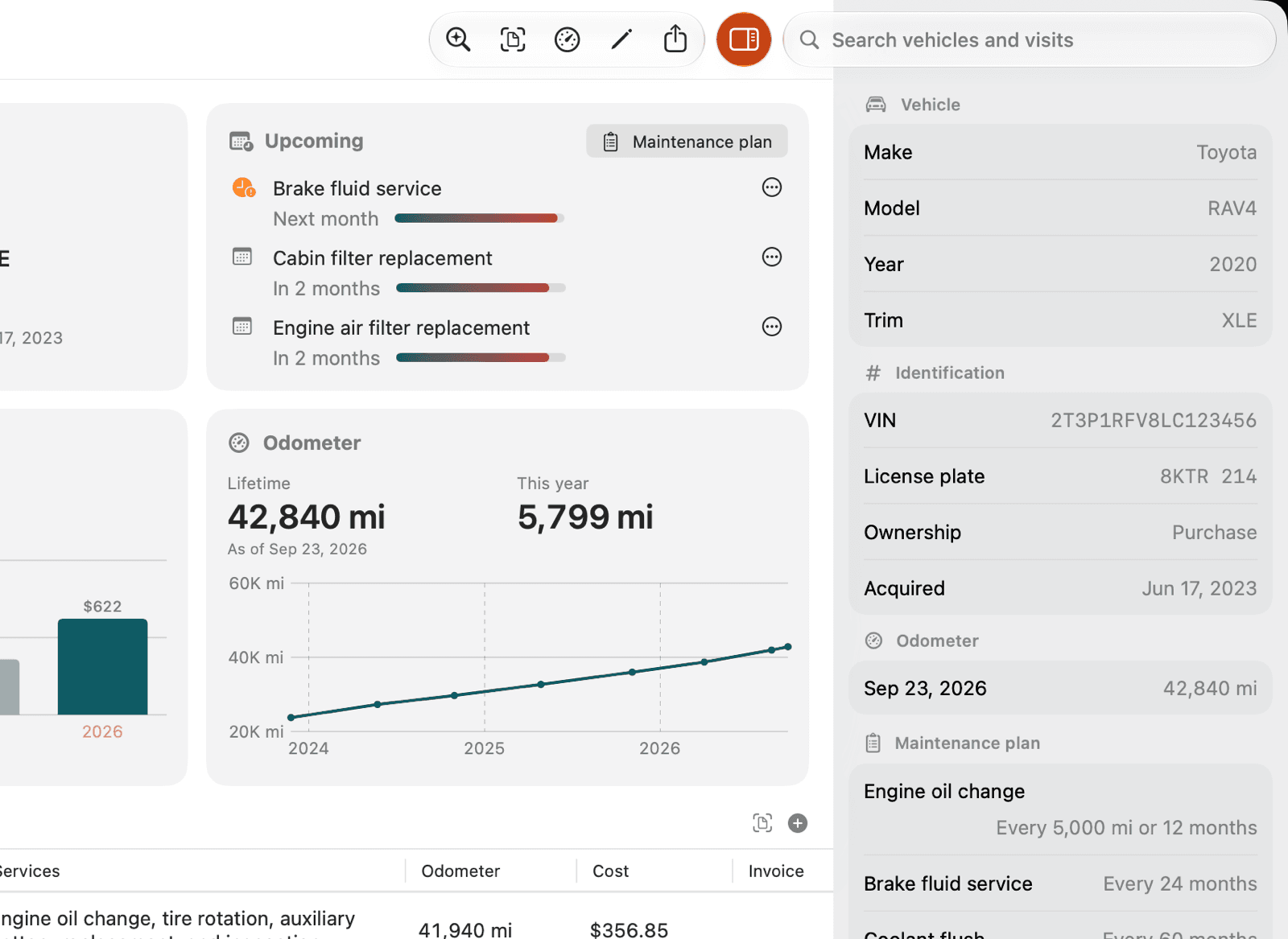
Press ⌥⌘I, or click the inspector button in the toolbar, for everything about the selected vehicle or workshop in a column on the right: its make and model, VIN and plate, every odometer reading, and its maintenance plan.
Keyboard shortcuts
Every command is in the menu bar. These have shortcuts:
File
| Keys | What they do |
|---|---|
| ⌘N | New Vehicle |
| ⇧⌘N | New Workshop Visit |
| ⌥⌘N | New Workshop |
| ⇧⌘I | Import Invoice… |
| ⌥⇧⌘I | Scan Invoice, with your iPhone’s camera |
| ⇧⌘E | Export Service History… |
| ⌘P | Print Service History… |
Edit
| Keys | What they do |
|---|---|
| ⇧⌘V | Paste Invoice |
| ⌘F | Search |
| ⌥⌘F | Ask Vehicare… |
| ⌘Z | Undo, including a deletion |
View, Vehicle and Visit
| Keys | What they do |
|---|---|
| ⌥⌘I | Show Inspector |
| ⇧⌘O | Log Odometer Reading… |
| ⌘E | Edit Vehicle… |
| ⌘⌫ | Delete Vehicle |
| ⌘↑ | Previous Visit |
| ⌘↓ | Next Visit |
| ⌥⌘E | Edit Visit… |
| ⌘Y | Quick Look Invoice |
Everywhere
| Keys | What they do |
|---|---|
| ⌘, | Settings |
| ⌘? | Vehicare Help |
| Return | Save a form |
| Esc | Cancel a form |
iPad
On an iPad with a keyboard, the same shortcuts work. Hold down ⌘ to see them.
Drag and drop, Services and the Dock
- Drop an invoice on a vehicle in the sidebar, on the import window, or on Vehicare’s icon in the Dock.
- In the Finder, right-click an invoice and choose Services ▸ Import Invoice into Vehicare, or Open With ▸ Vehicare.
- Drag a visit’s invoice out of Vehicare to save a copy in the Finder.
- Right-click Vehicare in the Dock for New Workshop Visit, Import Invoice…, Scan with iPhone, and the vehicles you’ve been to the workshop with lately.
Scanning with your iPhone
Your Mac can use your iPhone’s camera to scan a paper invoice. Choose File ▸ Scan Invoice (⌥⇧⌘I), or Scan with iPhone in the import window. Your iPhone’s camera opens; scan the pages, tap Save, and the invoice is in Vehicare on your Mac. Your iPhone needs to be nearby, signed in to the same Apple Account.
The same works for a VIN or an odometer reading, with Take Photo with iPhone under the field.
Import, Settings and Help
Importing invoices opens its own window, so you can keep your history in view while you check a visit. Settings and Vehicare Help have their own windows too. The Help menu’s items open the help at their topic, and Vehicare User Manual opens this manual.
Still stuck, or something doesn’t work the way this says? Write to me.