
The basics
Vehicare keeps three things: your vehicles, the workshops that look after them, and the visits you make to those workshops. Everything else, from what’s due next to what your car has cost, is worked out from them.
Getting started
The first time you open Vehicare, it says hello and asks whether it may send you a reminder before each service. You can say Not Now and change your mind later in Settings.
Then it asks for an invoice. That’s the quickest way in: import a maintenance invoice, and the visit, the vehicle and the workshop are filled in from it. Tap Import invoice… and pick one. If you’d rather start with a blank page, tap Add a vehicle by hand.
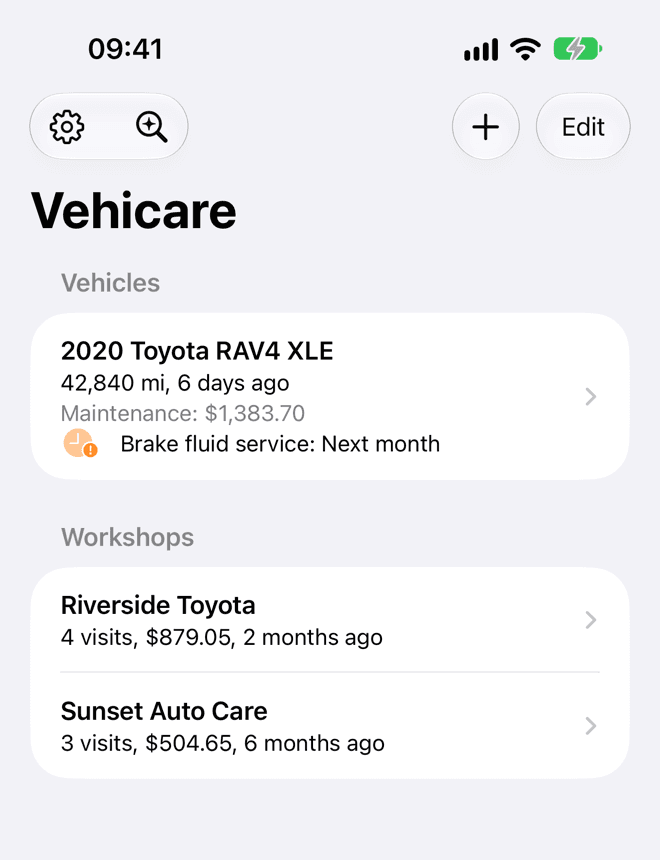
On an iPhone, this list is where you start. On an iPad or a Mac it sits in the sidebar, beside whatever you have selected.
Everything you record is kept in your own iCloud account, and syncs between your iPhone, iPad and Mac. There’s no account to create.
Vehicles
Add a vehicle from the + button, then Add vehicle. On a Mac or an iPad with a keyboard, press ⌘N.
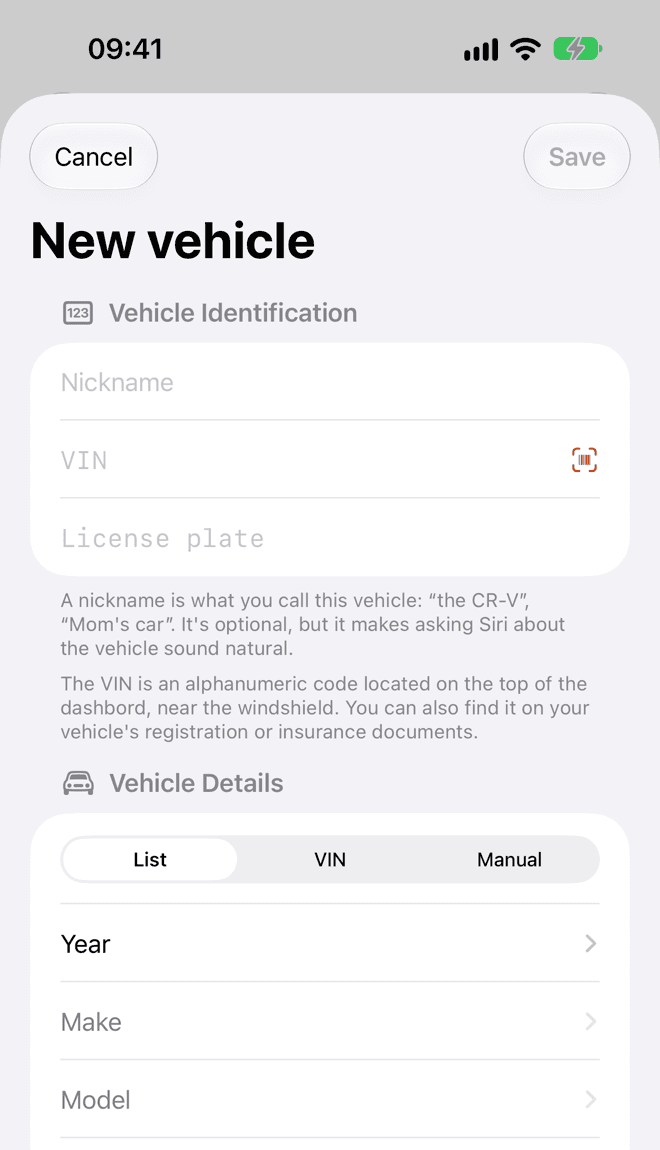
- Give it a Nickname if you like: “the CR-V”, “Mom’s car”. It’s optional, but it makes asking Siri about it sound natural.
- Type its VIN and License plate, if you have them at hand. On an iPhone or iPad, the camera button at the end of the field can read them for you. On a Mac, Take Photo with iPhone does the same with your iPhone’s camera.
- Under Vehicle Details, pick how to describe it. List lets you choose its year, make, model and trim. VIN looks it up from its VIN, for vehicles sold in North America. Manual lets you type it all yourself.
- Enter its Odometer if you know it. Leave it blank otherwise.
- Under Ownership, say whether you bought it, lease it or rent it, and since when.
- Tap Save.
You rarely need this form. When you import an invoice for a vehicle Vehicare hasn’t met yet, the vehicle is added for you, with its VIN and plate from the invoice.
Changing, sorting and deleting
- To change a vehicle, open it and tap Edit vehicle (the pencil). On a Mac, press ⌘E.
- To put your vehicles in another order, drag them in the list. On an iPad, tap Edit first.
- To delete one, swipe its row to the left, or touch and hold it and choose Delete. Vehicare asks first, because its visits go with it.
Touch and hold a vehicle (right-click on a Mac) for everything else you can do with it: import an invoice for it, log its odometer, change its maintenance plan, or copy its name, VIN or plate.
A vehicle at a glance
Open a vehicle to see where it stands: what it is, what’s coming up, what it has cost, how far it has gone, and every visit.
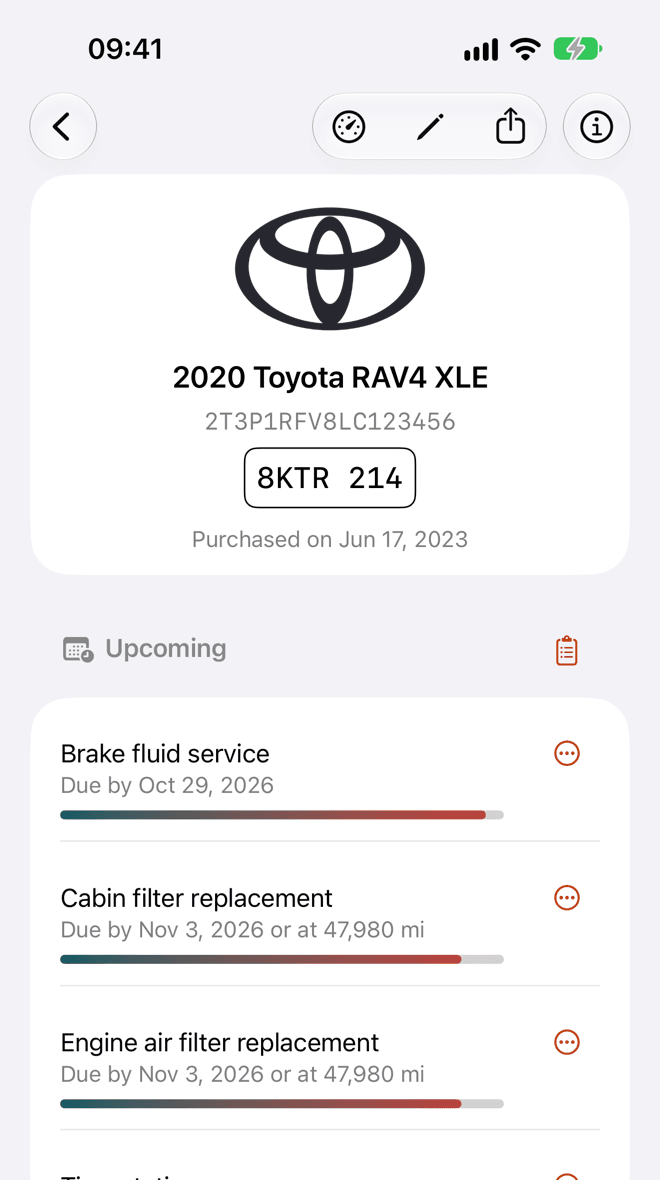
- 1Log odometer reading
- 2Edit vehicle
- 3Share service history, as a PDF
- 4Its details, with every odometer reading
- 5Its maintenance plan
- 6A service’s actions
Scroll down for its costs and its Service history, one visit per row, grouped by year. The buttons at the top log its odometer, edit it, share its history, and show its details.
iPad · Mac
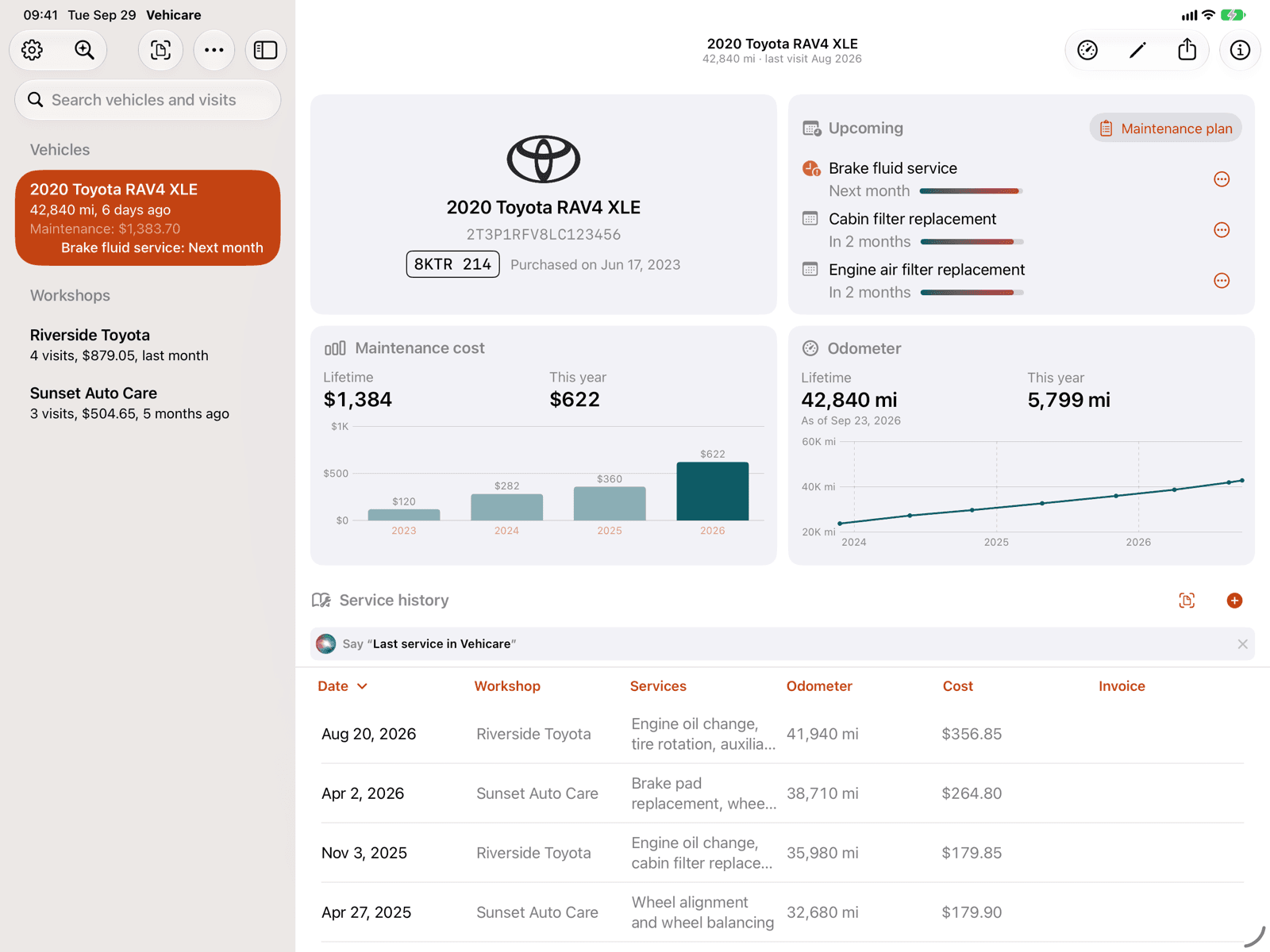
On a larger screen, the same things are laid out as cards, with the service history in a table underneath. The Mac chapter shows how to work in it.
The odometer
In Vehicare, a vehicle’s odometer is a log rather than a single number. Every reading is kept with its date. That’s how Vehicare knows how much you drive, and so when the next service will come up.
Each visit adds a reading from its invoice. To add one in between, open the vehicle and tap Log odometer reading (the gauge). Or just ask Siri to “Log the odometer in Vehicare”.
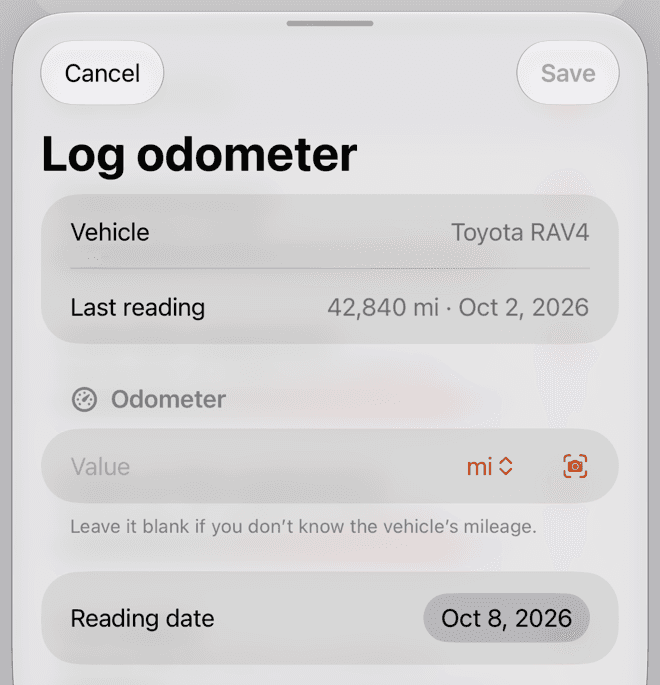
To see every reading, open the vehicle’s details: the ⓘ button on an iPhone, or the inspector on an iPad or a Mac. Readings that came from a visit say At a workshop visit.
Workshops
A workshop is wherever your vehicle gets looked after: the dealer, the garage down the street, the tire shop. Most are added for you, from an invoice. To add one yourself, tap +, then Add workshop.
As you type its name, Vehicare suggests places from Apple Maps. Pick one, and its phone number and address are filled in.
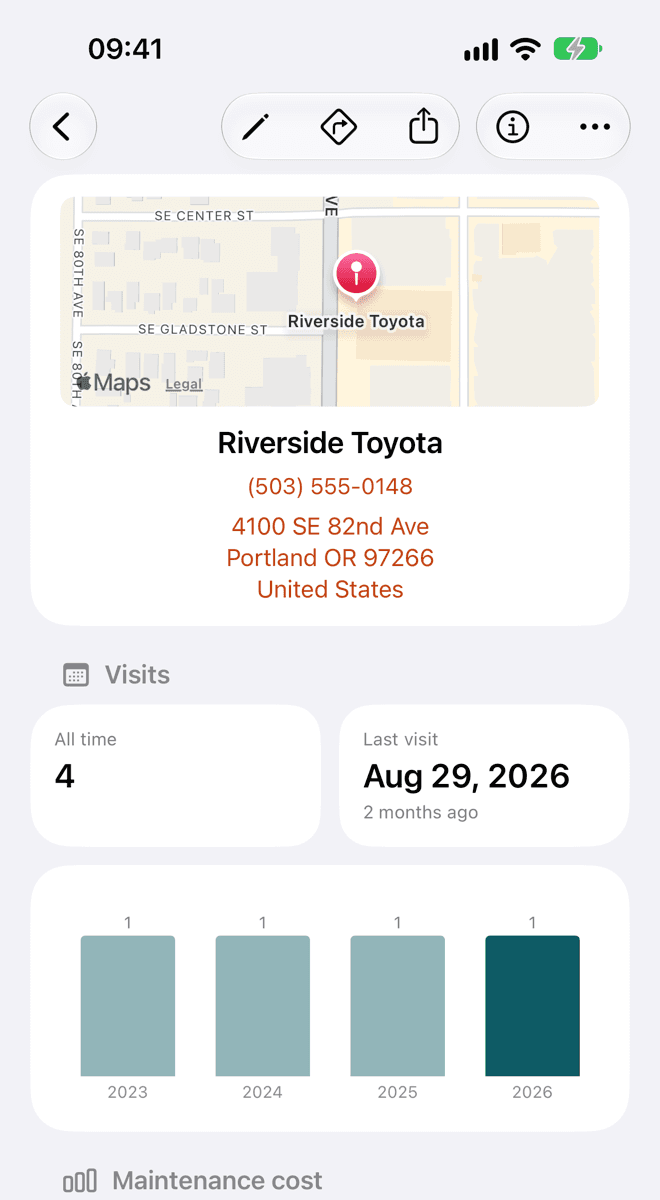
- Get Directions opens Maps, on its place card when it came from Maps.
- Add to Contacts… makes a contact card for it, with its phone and address.
- A workshop can only be deleted once it has no visits. Delete or move its visits first.
Workshop visits
A visit is what was done to a vehicle on a day: the workshop, the odometer at the time, what it cost, and one line per job. Most visits come from an invoice. To record one by hand, tap +, then New workshop visit.
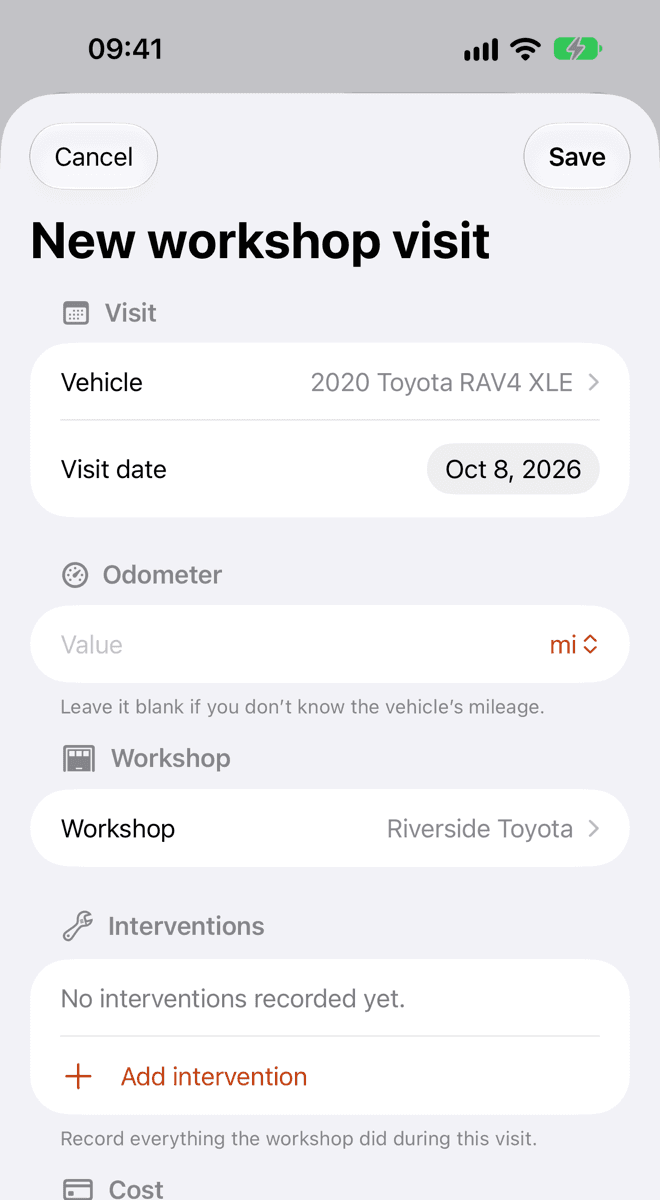
Interventions
Each job the workshop did is an intervention. Tap Add intervention, choose its Type from about 70 kinds of service, and enter what it cost. Types are grouped: fluids, filters, brakes, tires and wheels, and so on. For anything else, choose Other and describe it.
Some jobs cover more than one thing, like brake pads and rotors billed together. Use Add another type to say so. Vehicare then counts it for both when it works out what’s due.
The cost
Under Cost, enter the Total paid, taxes and fees included. Without one, a visit costs what its interventions add up to. The currency is your own unless you change it: a visit keeps the currency it was saved in.
Looking at a visit
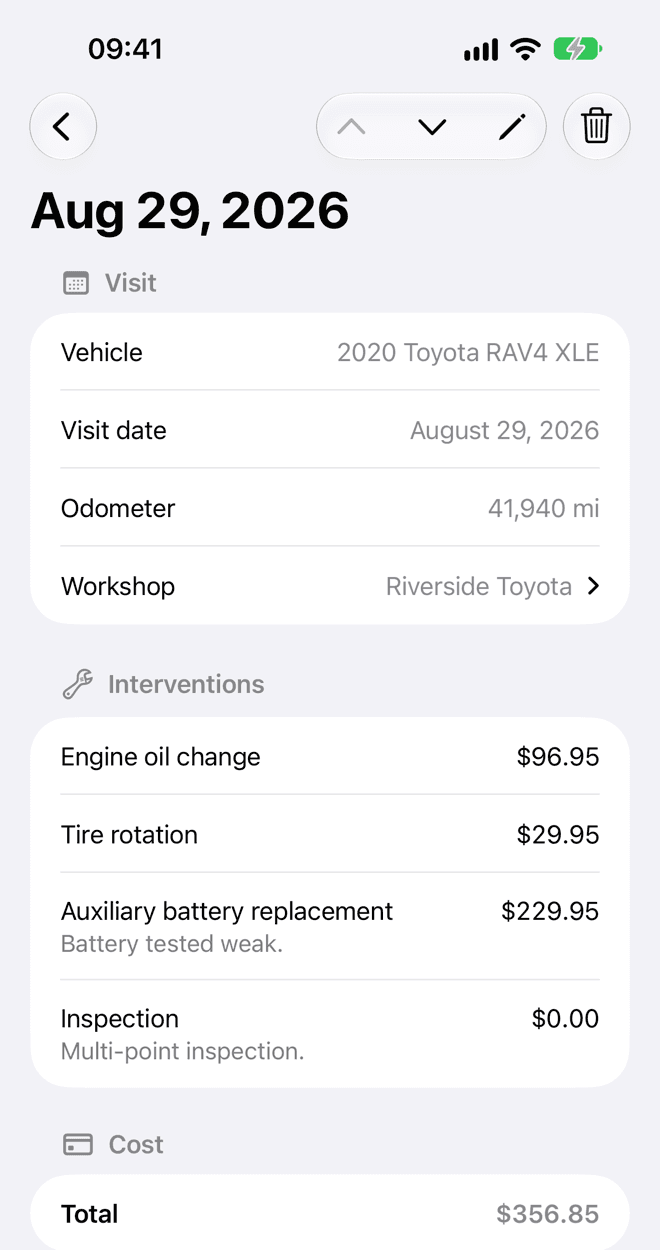
Tap View invoice to see the original, zoomed in as far as you need. The arrows at the top go to the previous and next visits. To change something, tap Edit visit. To delete the visit, use the trash button.
What’s due
There’s no schedule to set up. Vehicare looks at what your visits say was done, and at how much you drive, and works out when each service is due again: by distance or by time, whichever comes first.
What’s coming up is listed under Upcoming, soonest first. The bar fills as a service gets closer. Tap … beside one for its actions.
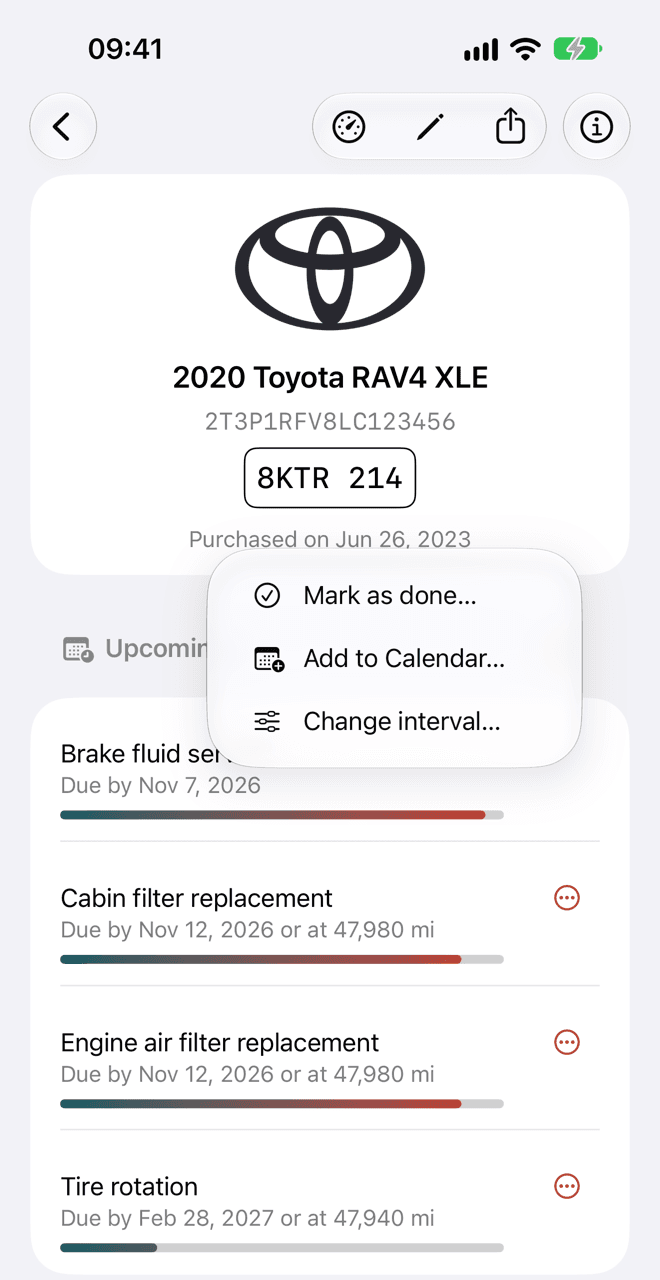
- Mark as done… starts a new visit with that service in it. You only fill in where and what it cost.
- Add to Calendar… puts it in your calendar on the day it’s expected. The event links back to the vehicle.
- Change interval… opens the vehicle’s maintenance plan at that service.
The maintenance plan
Each vehicle starts with sensible intervals: an oil change every 8,000 km (5,000 mi) or 12 months, tire rotation, filters, brake fluid, coolant, wipers, an inspection, and the key fob battery. To change them, touch and hold the vehicle and choose Maintenance plan….
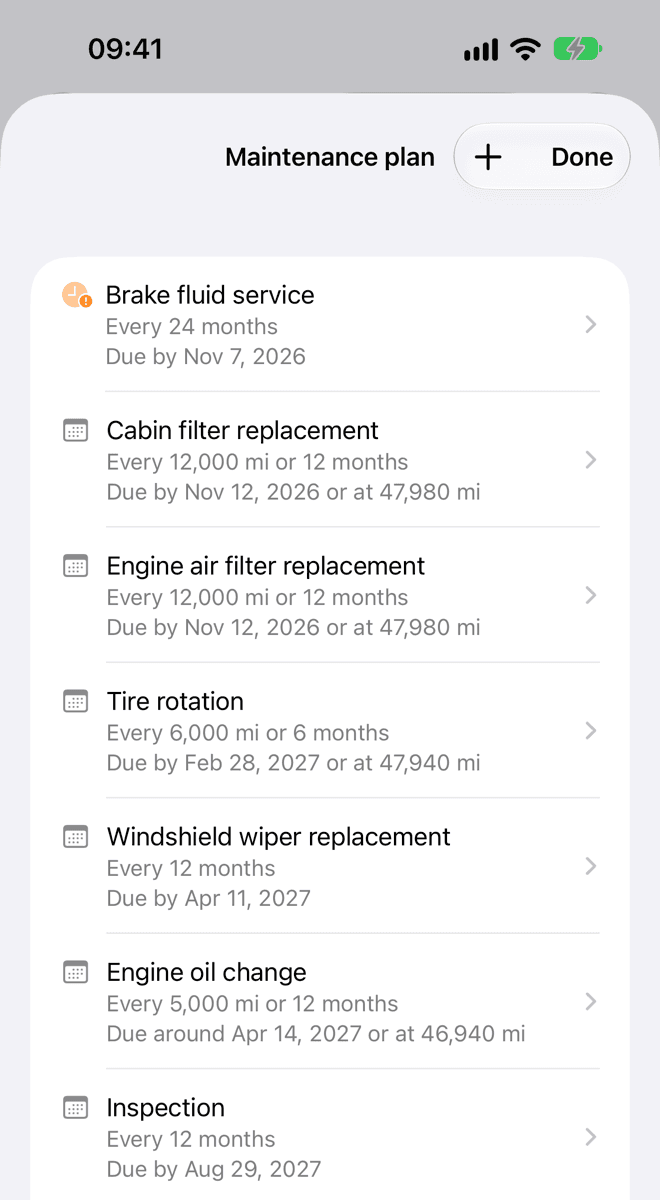
Use Add service for one that isn’t there, and Remove from plan for one you don’t want reminders for. Reset to defaults puts it all back. Changes are saved as you go.
Want a nudge? Turn on Service reminders in Settings, and Vehicare will send a notification about a week before each service is due.
What it costs
Further down a vehicle, Maintenance cost shows what it has cost in all, and this year, with a bar for each year and a line for each workshop. Odometer shows how far it has gone, and how far you’ve driven this year.
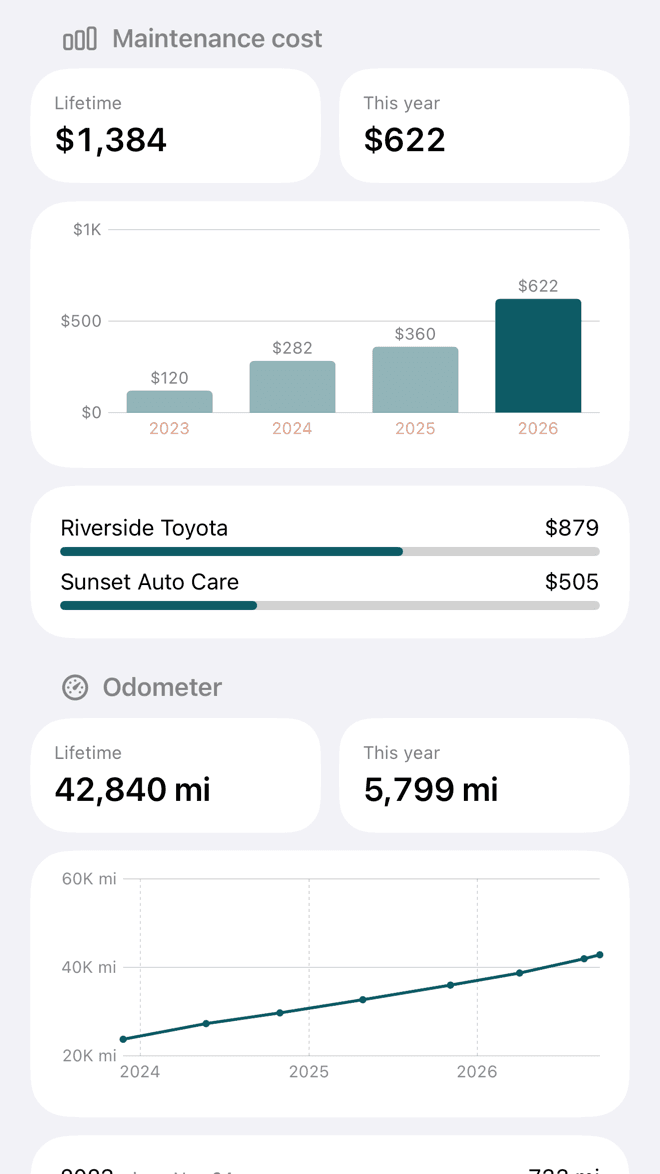
A workshop’s screen shows the same for the workshop: how often you go, and what you’ve spent there.
Search and Ask Vehicare
The search field finds vehicles, workshops and visits. It’s at the bottom of the list on an iPhone, at the top of the sidebar on an iPad, and in the toolbar on a Mac. Type a workshop, a kind of service, or a word from a visit’s notes. Choose Everywhere, or just the selected vehicle or workshop.
To ask a question in your own words, tap Ask Vehicare, the magnifying glass with a sparkle at the top of the list. “When did I last change the oil?” “How much did I spend on brakes since 2024?” The answer comes from your own records, with the visits it’s based on underneath. Your question is read on your device by Apple Intelligence.
Free, and unlocked
Vehicare is free for your first vehicle, with everything it needs: reading invoices, the full history, what’s due and reminders, iCloud, Siri and Shortcuts.
One payment unlocks the rest: every other vehicle you own, lease or rent; sharing, exporting and printing your history; and no more ad card. It’s one purchase for your iPhone, iPad and Mac. No subscription, not now, not later.
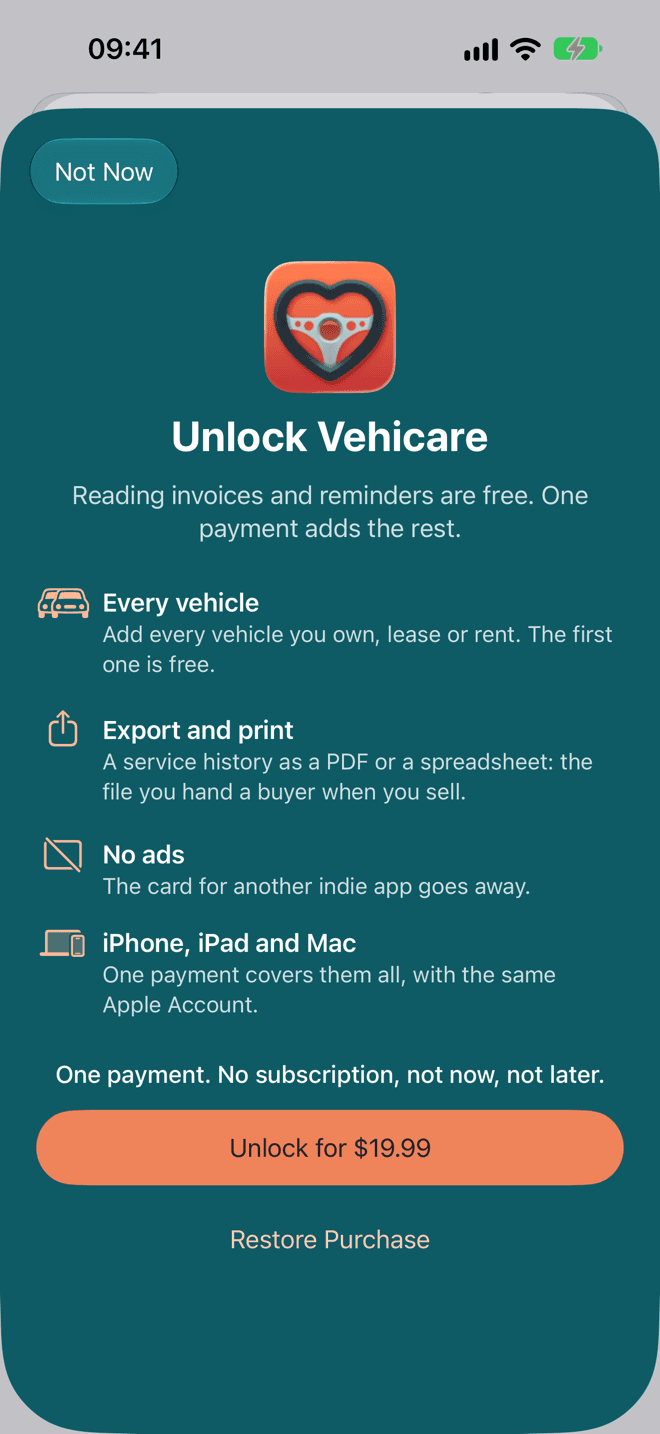
Vehicare shows this screen when you need it: when you add a second vehicle, or share a history. You can also unlock it from Settings. Bought it on another device? Tap Restore Purchase.
Until it’s unlocked, a small card under your vehicles shows another app made by an independent developer. It knows nothing about you, and it goes away when you unlock.
Still stuck, or something doesn’t work the way this says? Write to me.